

Getting the Mixing Desk Into Your Livestream: USB Audio, Matrix Mixes and OBS
How churches, schools and venues get a clean, balanced feed from the mixer to the stream: the USB interface already built into your desk, a separate mix for online viewers, ambience mics, OBS settings and putting audio onto HDMI when the computer is not the encoder.
~11 min read · Updated October 2026 · By the Stage Supply team
In this guide: The short answer · Why the PA mix sounds wrong online · Mixer USB and mix options · Building the stream mix · Ambience mics · USB into the computer · Setting up OBS · Audio into the video chain · Desks without USB · Service-day checklist · Licences · Popular picks · FAQ
The short answer
If your mixer is a recent Allen & Heath CQ, Qu or SQ, you already own the audio interface. Run one USB cable from the desk to the streaming computer, send it a dedicated stereo mix built for the stream rather than a copy of the PA mix, and pick that pair of USB channels as the audio device in OBS or whatever software you stream with.
- Use a separate stream mix. An aux or matrix set up for online viewers, with ambience mics added, almost always sounds better than the main PA mix.
- Put the stream mix on the first two USB channels if your streaming software only reads a stereo pair.
- Line up level and sync in OBS with a test recording before the first live service.
- If the encoder is a camera, switcher or hardware box, embed the desk feed into HDMI or feed a capture device’s analogue input instead.
Why the PA mix sounds wrong online
The front-of-house mix is balanced for the room. Anything loud enough to be heard acoustically, such as a drum kit, piano, organ, choir or brass, is kept low or left out of the PA because the room already hears it. Speech and solo vocals are pushed up because they need reinforcement.
Online viewers only hear what goes down the cable. Send them the PA mix and the result is usually loud speech, thin music and no sense of a room full of people. The congregation singing, applause and laughter barely register because they never went through the desk.
The fix is a second mix made for the stream. Every mixer in the table below can make one, and the aux, group and matrix guide explains the building blocks in more depth.
Allen & Heath mixers: USB channels and stream-mix options
Channel counts are from Allen & Heath’s product pages and datasheets. The USB interface carries audio both ways: from desk to computer for streaming and recording, and back for playback or virtual soundcheck.
| Mixer | Built-in USB audio interface | Mixes you can use for a stream feed |
|---|---|---|
| CQ-12T | USB-B, 16 x 16, 48 or 96kHz | Six aux outputs, linkable up to three stereo; no matrix listed. Use an aux. |
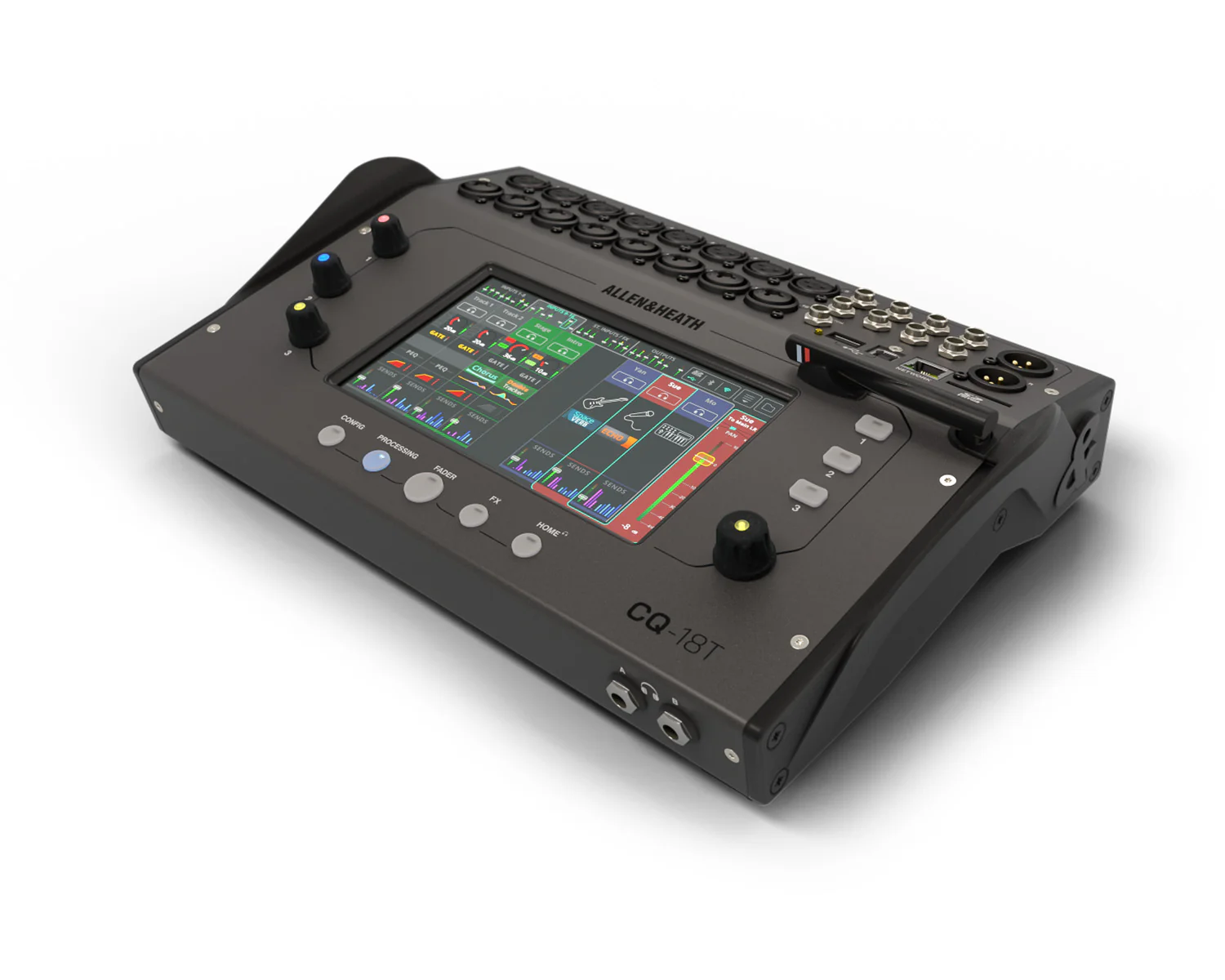
| CQ-18T | USB-B, 24 x 22, 48 or 96kHz | Six aux outputs, linkable up to three stereo; no matrix listed. Two headphone outputs can carry different mixes. |
| CQ-20B | USB-B, 24 x 24, 48 or 96kHz | Six aux outputs, linkable up to three stereo, plus an assignable Alt Output; no matrix listed. |
| Qu-5, Qu-6, Qu-7 (and Dante versions Qu-5D, Qu-6D, Qu-7D) | USB-C, 32 x 32 | 12 mixes (6 mono/linkable and 6 stereo aux/group) plus 4 mono/linkable matrix outputs. |
| Qu-SB, Qu-Pac | 32 x 32 USB audio interface | 4 mono and 3 stereo mixes, plus 2 stereo matrix outputs. |
| SQ-5+, SQ-6+, SQ-7+ | USB-B, 32 x 32 at 48 or 96kHz | 12 stereo aux/group mixes plus LR, and 6 mono/linkable matrix outputs. |
On the CQ, USB-B is Core Audio compliant on a Mac, with ASIO and WDM drivers for Windows. Allen & Heath describe the SQ+ interface as class compliant, with ASIO and WDM drivers available. Choosing between the families is covered in CQ vs Qu and SQ-5 vs SQ-6 vs SQ-7.
Every model above can also record on board, which makes a useful backup if the stream drops: CQ to SD card, the new Qu to SD card (32 x 32 at 48kHz or 16 x 16 at 96kHz), Qu-SB and Qu-Pac to a USB key or drive via Qu-Drive (18 channels at 48kHz, or a stereo mix) and SQ+ to a USB drive via SQ-Drive (32 channels at 48kHz or 16 at 96kHz, or a stereo mix).
Building the stream mix: aux or matrix
There are two common ways to build it. Which suits you depends on how many mixes the desk has spare and how much separate control you want.
Option 1: a dedicated aux (all three families)
Link an aux to stereo and send every channel to it. This gives per-channel control: more choir and piano, less speech, ambience mics in, and anything the room does not need, such as a click or a pastor’s foldback, left out. It is the only route on CQ, whose specs list no matrix, and it uses up one of the monitor mixes.
- Post-fade sends make the stream follow the engineer’s fader moves. A mic faded out on the main mix also disappears from the stream. This is usually what a volunteer team wants.
- Pre-fade sends make the stream mix independent of the PA. More control, but someone has to watch it, because a mic left open on the stream is not obvious from the room.
Option 2: a matrix (Qu and SQ)
Feed a stereo matrix from the main mix and add a group carrying the ambience mics and any instruments the PA leaves out. The stream then follows the main mix automatically, with a correction layer on top. Qu has four mono/linkable matrix outputs and SQ+ has six, so this costs no monitor mixes.
Rule of thumb
Start with the stream mix fed from the same channels as the PA, then bring up the instruments and ambience the room hears acoustically until a pair of headphones on the stream feed sounds like being in the room. Then leave it alone during the service.
Whichever route you choose, put the mix’s own processing to work. Gentle compression on the stream mix, plus a limiter in the desk or in OBS, keeps a sudden loud moment from clipping the encoder, which is far less forgiving than a room.
Ambience mics: the part most streams are missing
A pair of mics pointed at the congregation or audience, kept out of the PA and fed only to the stream, is what makes online viewers feel present. Without it, hymn singing comes across as a solo vocalist and the end of a school show as silence.
- A matched pair of condensers, such as the sE Electronics sE8 matched pair, on stands at the sides of the room facing the seating.
- Hanging mics such as the Audio-Technica PRO45 over the seating, where stands would be in the way.
- Route them to the stream mix only. Leave them out of the PA so they never become a feedback path.
Placing choir and room mics is covered in detail in how to mic a choir.
USB into the computer: the routing that trips people up
The desk sends many USB channels, but some streaming and video-call software only uses the first stereo pair of a multichannel audio device. If the stream mix is on USB channels 23 and 24, software like that will hear channels 1 and 2 instead.
- In the mixer’s USB or I/O patch screen, route the stream mix (the aux or matrix) to USB outputs 1 and 2, or to whichever pair your software lets you pick.
- Set the desk and the computer to the same sample rate. 48kHz is the usual choice for video.
- On Windows, install Allen & Heath’s ASIO/WDM driver where the desk calls for one. Check the mixer appears as an audio device on the computer before opening the streaming software.
- Watch the meters in the streaming software, not just the desk, while someone speaks and sings.
On the original Qu-SB and Qu-Pac, Allen & Heath’s own advice for livestreaming is simply to send a stereo mix over USB and let the streaming software do the rest. The same idea holds on every desk here.
Setting up OBS Studio
OBS Studio is free, open-source streaming software and is widely used for church and school streams. These settings come from the OBS Project’s own Knowledge Base and the option names in the OBS app itself.
- Choose the device. Either set the desk as the microphone/auxiliary audio device under Settings → Audio, or add an Audio Input Capture source to the scene. Do not do both with the same device: OBS warns this causes an echo.
- Check both meters move. A stereo source shows two meters, left then right. If only the first lights up, viewers hear the stream in their left ear only. Fix the routing on the desk, or use the Mono (downmix) option in Advanced Audio Properties as a stopgap.
- Set levels at the source first. Get the desk level right, then the computer’s input level, and only then touch the OBS fader. OBS’s own guide says speech should reach the lower end of the red zone on its meter.
- Add a Limiter filter to the desk source as the last filter in the chain, so nothing passes 0dB.
- Fix lip sync with Sync Offset. Edit → Advanced Audio Properties has a Sync Offset in milliseconds for each audio source. Cameras and capture devices often deliver the picture later than the desk delivers the sound, so add delay to the audio until mouths and words line up. If the picture is ahead of the sound instead, OBS’s Render Delay filter delays the video.
- On Windows, the Audio Input Capture source has a Use Device Timestamps option which, in OBS’s words, attempts “to prevent desync”.
- Use Audio Monitoring in Advanced Audio Properties to listen to exactly what OBS is receiving.
OBS also recommends recording a test and listening back before going live. Do it at the start of each service: thirty seconds of the worship band or the choir, played back on headphones, catches most problems.
When the encoder is not a computer: audio into the video chain
Some setups stream from a hardware encoder, a video switcher or a camera rather than OBS. Audio then has to travel with the picture, usually embedded in the HDMI signal, and there are two ways to get it there. For the video side, see video signal basics and HDMI vs SDI for live events.
Embed the desk feed into HDMI
An audio embedder sits in the HDMI line and replaces or adds the audio. CYP say the AU-11CA-4K22 inserts an external audio signal into any HDMI source, via a 3.5mm analogue stereo input or a Toslink optical input, and passes HDMI 2.0 up to 4K. Put it between the camera or switcher output and the encoder.
Use a capture device with its own audio input
A USB capture device turns HDMI into a webcam-style video and audio device that OBS or a video-call app can open. CYP’s SY-XTREAM-C captures up to 4K30 over USB, passes 4K60 HDR through to a local screen, and has a 3.5mm stereo line input and a 3.5mm mic input as well as the HDMI audio, with a built-in mixer to combine the analogue inputs. The SY-XTREAM-PIP takes two HDMI inputs with picture-in-picture, has a switchable 3.5mm line/mic input, and an audio mixer that CYP say can mix an analogue mic on that input with the HDMI audio. CYP state both work with OBS on Windows, macOS and Linux. The USB 3.0 SY-XTREAM captures at up to 1080p and takes its audio from either the HDMI input or a 3.5mm analogue input, selected in CYP’s configuration software.
These 3.5mm inputs are consumer-style, so feed them carefully from a professional mixer’s +4dBu outputs: start with the send well down and raise it while watching the capture meters. On a CQ-18T, one of the two assignable headphone outputs can carry the stream mix, which is a convenient way to feed a mini-jack input.
If the camera position or encoder is a long way from the desk, getting HDMI there is its own job: see HDMI over Cat cable.
Desks without USB, and other interfaces
Older analogue desks can still feed a stream. Take an aux or a spare output to a USB audio interface and treat that as the stream mix.
- Two channels is enough for a stereo stream mix. The Tascam DR-05XP is a handheld recorder that also works as a 2-in/2-out USB-C audio interface, with a stereo mini-jack that accepts an external line input. Tascam say its 32-bit float mode removes the need to set recording levels, which suits an unattended backup recording.
- To mix in the computer instead, a multichannel interface such as the Tascam US-16×08 takes 16 inputs, eight of them mic preamps, into the computer. This only makes sense if someone will mix on the computer.
- For a spoken-word stream without a mixing desk, Tascam’s Mixcast 4 has four mic inputs with auto-mix, a 14-in/2-out USB interface and multitrack recording to SD card.
For the wider picture of sound, radio mics and cameras in a church, see the church AV upgrade guide.
Service-day checklist
- Desk and computer on the same sample rate; stream mix patched to the USB pair the software reads.
- Ambience mics up in the stream mix, out of the PA.
- Both OBS meters moving; levels set at the desk first.
- Limiter on the stream source; Sync Offset checked against a speaking face on camera.
- Thirty-second test recording played back on headphones.
- On-board backup recording running on the desk or a separate recorder.
A note on licences
Streaming music is a licensing question as well as a technical one. CCLI says: “The CCLI Streaming Licence™ and CCLI Streaming Plus Licence™ extend the cover of the Church Copyright Licence™ to include online worship.” PRS for Music is another organisation UK venues and schools may come across. Check your situation directly with those organisations; we do not give licensing advice.
Popular picks from the shop
Allen & Heath CQ-18T Compact Digital MixerView product → Allen & Heath CQ-12T Compact Digital MixerView product → Allen & Heath CQ-20B Compact Digital MixerView product → Allen & Heath Qu-6 Digital MixerView product → Allen & Heath SQ-5+ Digital MixerView product → CYP SY-XTREAM-C HDMI to USB-C CaptureView product → CYP AU-11CA-4K22 HDMI Audio EmbedderView product → Tascam DR-05XP Recorder and USB-C InterfaceView product →
Frequently asked questions
How do I get audio from my mixer into OBS?
Connect the mixer’s USB port to the computer, route a stereo stream mix to USB channels 1 and 2 on the desk, then select the mixer as the audio device in OBS Settings → Audio or with an Audio Input Capture source. Check both meters move and set levels at the desk first.
Why does my livestream only have sound in one ear?
OBS is receiving a single channel on the left of a stereo source. Route a stereo pair from the desk to the two USB channels OBS is reading, or use the Mono option in OBS Advanced Audio Properties as a temporary fix.
Why does the church service sound thin on the stream?
Because the stream is getting the PA mix, which leaves out what the room hears acoustically: congregation singing, choir, piano and drums. Build a separate stream mix on an aux or matrix and add ambience mics to it.
Can I stream from an Allen & Heath CQ without a separate audio interface?
Yes. Every CQ model has a built-in USB-B audio interface: 16 x 16 on the CQ-12T, 24 x 22 on the CQ-18T and 24 x 24 on the CQ-20B. Allen & Heath’s CQ specs list six aux outputs and no matrix, so use one of the auxes as the stream mix.
How do I fix audio and video being out of sync in OBS?
Open Edit → Advanced Audio Properties and add delay in milliseconds to the desk source’s Sync Offset until speech lines up with lips. If the picture is ahead of the sound instead, use OBS’s Render Delay filter on the video source.
Do I need a licence to stream a church service?
That is a question for the licensing bodies rather than us. CCLI says: “The CCLI Streaming Licence™ and CCLI Streaming Plus Licence™ extend the cover of the Church Copyright Licence™ to include online worship.” PRS for Music is another organisation to ask. Check your situation with them directly.
Shop this guide
Mixers with built-in USB, capture devices, embedders and recorders for streaming services and shows. Tell us what desk and camera you have and we will help with the routing.
Compact Digital Mixers Digital Mixing Desks Video Capture Audio Embedders & Converters Audio Interfaces & Recorders Condenser Microphones



